Sign in
Signing in tells Backoffice who you are. It takes an email address and the password you chose when you created the account, and it is the way back in every time you come back to an event, a company or a mailing list you manage.
Public — no role, package or existing event needed.
The sign-in form is open to anyone with an account. You do not need an invitation, a role inside an event, or a company to sign in.
Where the form lives
The form is on the Login page at /en/auth/login. Three ways to reach it:
- Directly, by typing
/en/auth/logininto your browser's address bar. - From a page that needs an account. Backoffice sends you to sign in first and remembers the page you came from, so signing in continues where you left off.
- From the Register page, through Already have an account? → Sign in at its bottom.
If your account was created with Google, Apple or LinkedIn, sign in with the button for that provider further down the form. There is no password to type for those accounts.
Steps
- Email — the address you created the account with. The field is marked invalid until it holds a complete address.
- Password — your password. The eye icon at the right of the field shows what you typed; the dots are the only thing hidden.
- Login — the wide button under the fields. While the request is on its way it reads Loading... and cannot be pressed again.
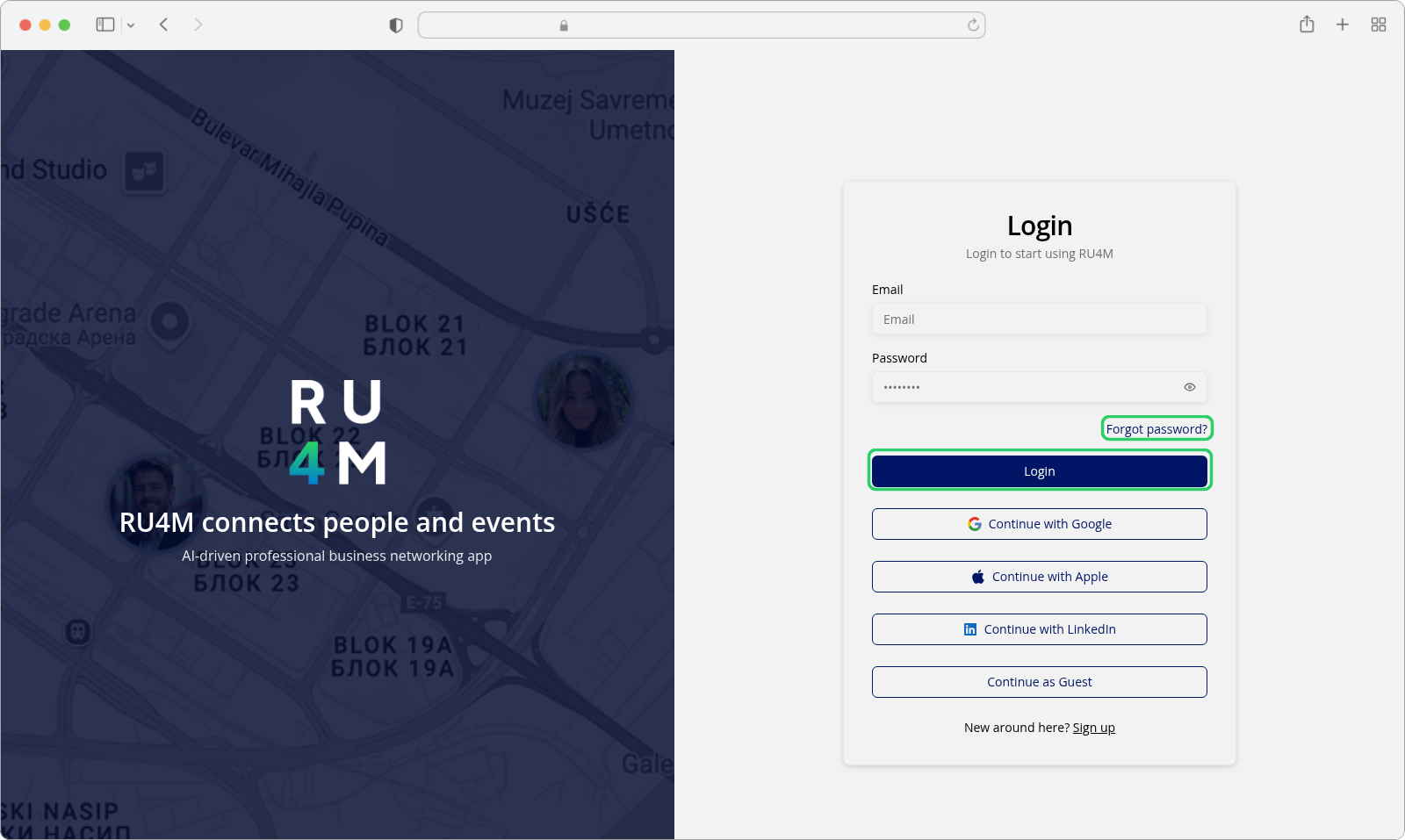
Forgot password? sits above the Login button and opens password recovery — see Reset your password.
Login is not the only way in. Below it, Continue with Google, Continue with Apple and Continue with LinkedIn sign you in through that provider instead. Continue as Guest leaves the form and opens the public landing page, without an account.
If you do not have an account yet, New around here? at the bottom of the form links to Sign up.
What happens next
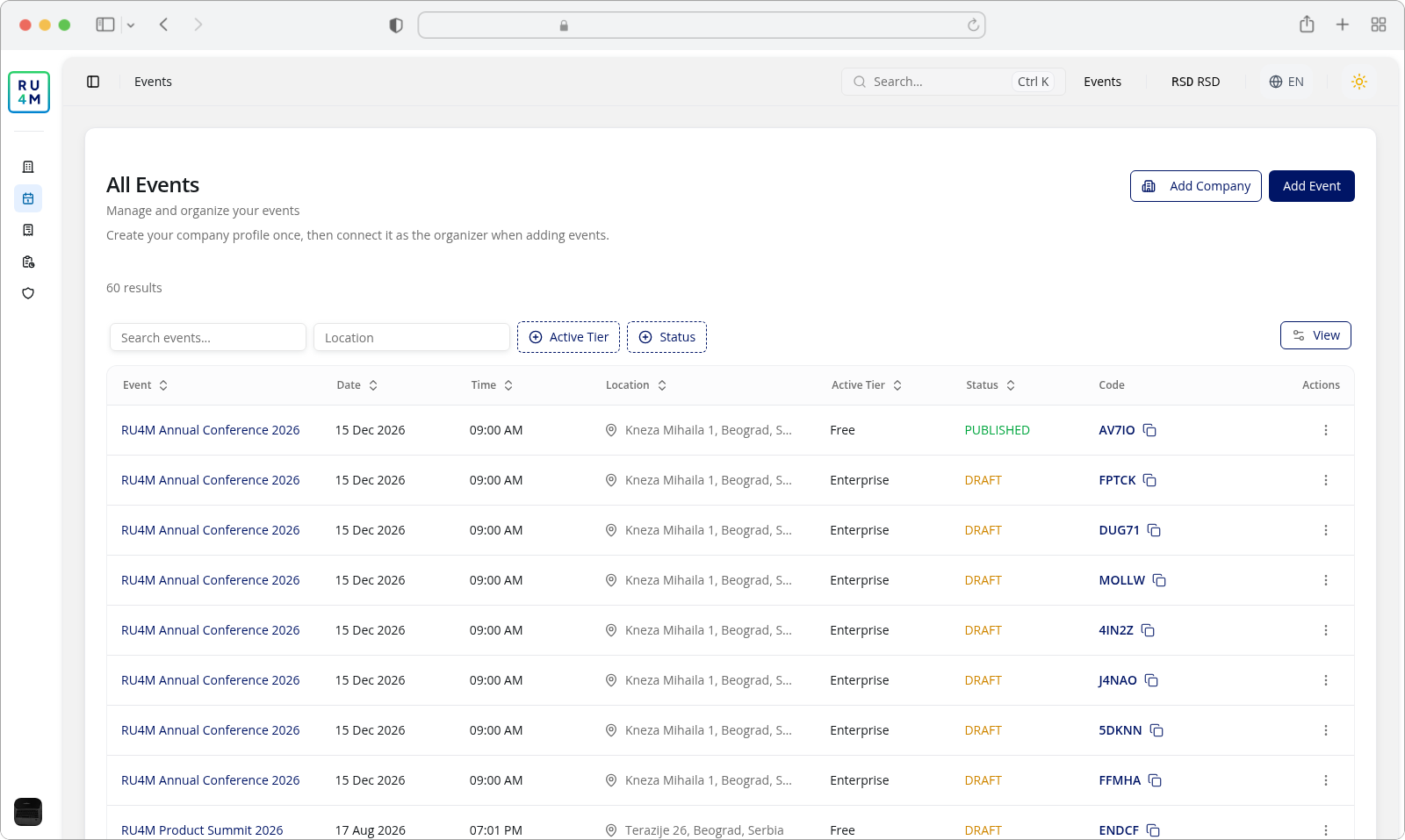
A successful sign-in shows Logged in successfully, and the browser opens the page you were sent from — or, when there was none, the event dashboard at /en/dashboard/events. It appears half a second after the confirmation, so the message is often already gone by the time the next screen loads.
If something goes wrong
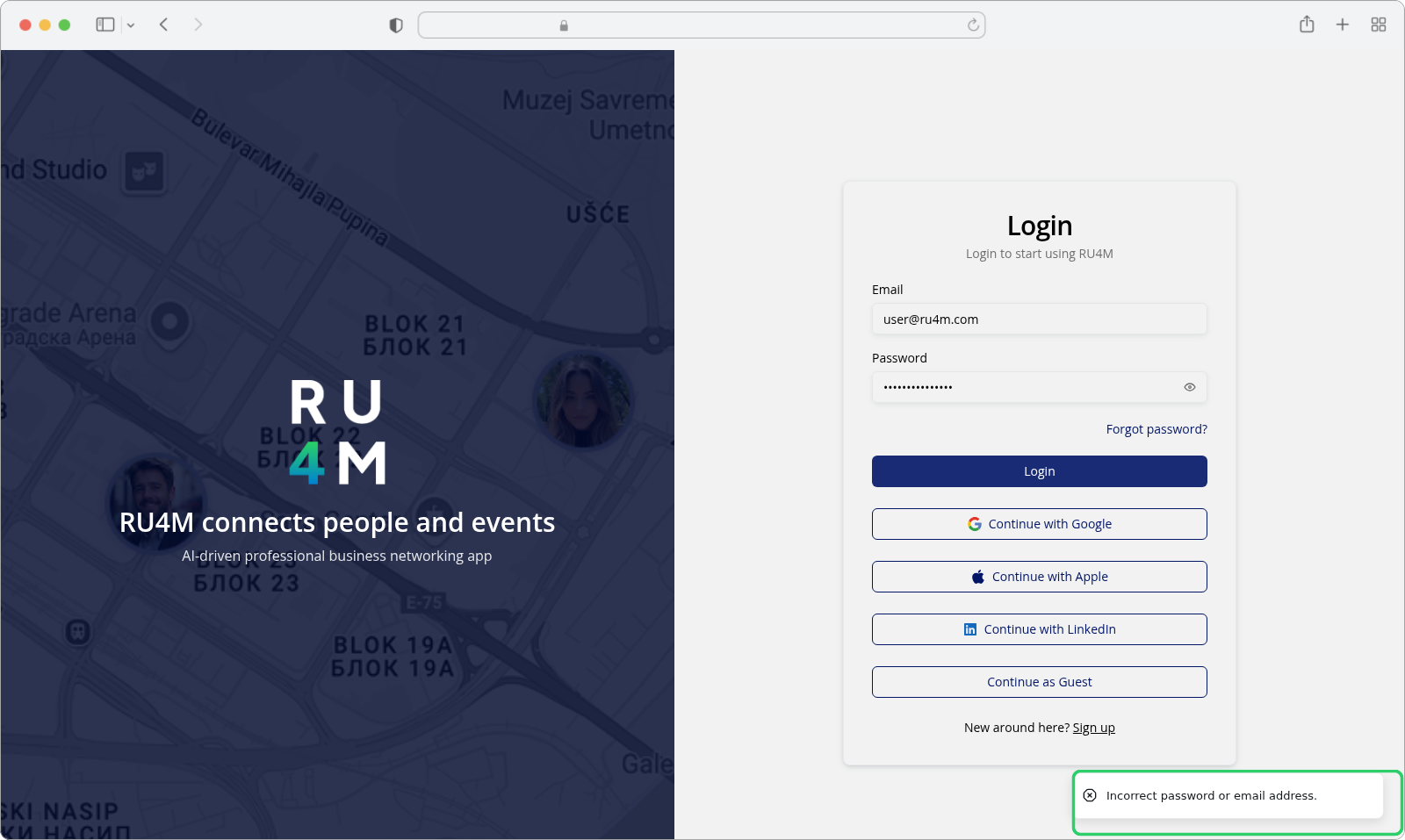
Two kinds of message arrive here, and they appear in different places. The empty-field and address-format messages are shown under the field they belong to, and nothing is sent until both are correct. Everything the service has to say comes back as a toast in the corner of the screen; the form stays filled in, so you can correct one field and press Login again.
Shown under the field:
| Message | What it means | What to do |
|---|---|---|
| This field is required | A field was left empty. | Fill in the email and the password. |
| Please enter a valid email address | The address is incomplete or is not an address at all. | Retype it, including the @ and the domain. |
Shown as a toast:
| Message | What it means | What to do |
|---|---|---|
| Incorrect password or email address. | The password does not match, or there is no account with that address — the same message covers both, so it does not tell you which. | Make sure the address is the one you registered with, then check the password. |
| This account was created using Apple, Google, or LinkedIn sign-in. Please use "Forgot Password" to set a password for email login. | The account has no password because it was created through a provider. | Scroll up and press the button for that provider, or set a password through Forgot password?. |
| Too many failed login attempts. Your account has been temporarily locked for security reasons. Please try again in {minutes} minutes. | The password was wrong repeatedly. The account is locked for the number of minutes named in the message. | Wait for that long and try once, carefully. |
| Failed to login | The request failed without a message of its own. | Wait a moment and try again. |
| An unexpected error occurred. Please try again later or contact support. | Something failed on the service. | Try again later. |
A wrong password is remembered
Repeated failed attempts against the same address lock the account for a while, and the message tells you how long. Counting the attempts is what makes guessing somebody else's password useless — it also means an ordinary typo repeated a few times is enough to trigger it.