Create an account
Your Backoffice account is what holds the events you organize, the companies you belong to and the mailing lists your invitations go out to. Creating one takes a minute, and you only need a name, an email address and a password.
Public — no role, package or existing event needed.
The registration form is open to anyone with an email address. You do not need an invitation, an existing event, or a company to register.
Where the form lives
The form is on the Register page at /en/auth/register. Two ways to reach it:
- From the sign-in page, follow New around here? → Sign up at the bottom of the form.
- Directly, by typing
/en/auth/registerinto your browser's address bar.
The shorter /en/register address is only a redirect to the same page — use /en/auth/register if you bookmark it.
Steps
- Full name — enter your first and last name. The field accepts letters, numbers and spaces, up to 100 characters, and needs at least two words.
- Email — the address you will sign in with and the one verification messages are sent to.
- Password — between 8 and 64 characters.
- Confirm password — repeat the same password.
- Tick the agreement box next to I agree to the Terms of Service and Privacy Policy. Both documents open in a new tab when you click their names.
- Create account. The button stays disabled until the form is valid; while the request is being sent it reads Creating account….
Create account is not the only way through. Under Or continue with, the Continue with Google, Continue with Apple and Continue with LinkedIn buttons create the account from that provider instead — the provider supplies your name and address, and you never fill in the fields above.
If you already have an account, Already have an account? at the bottom of the form links to Sign in.
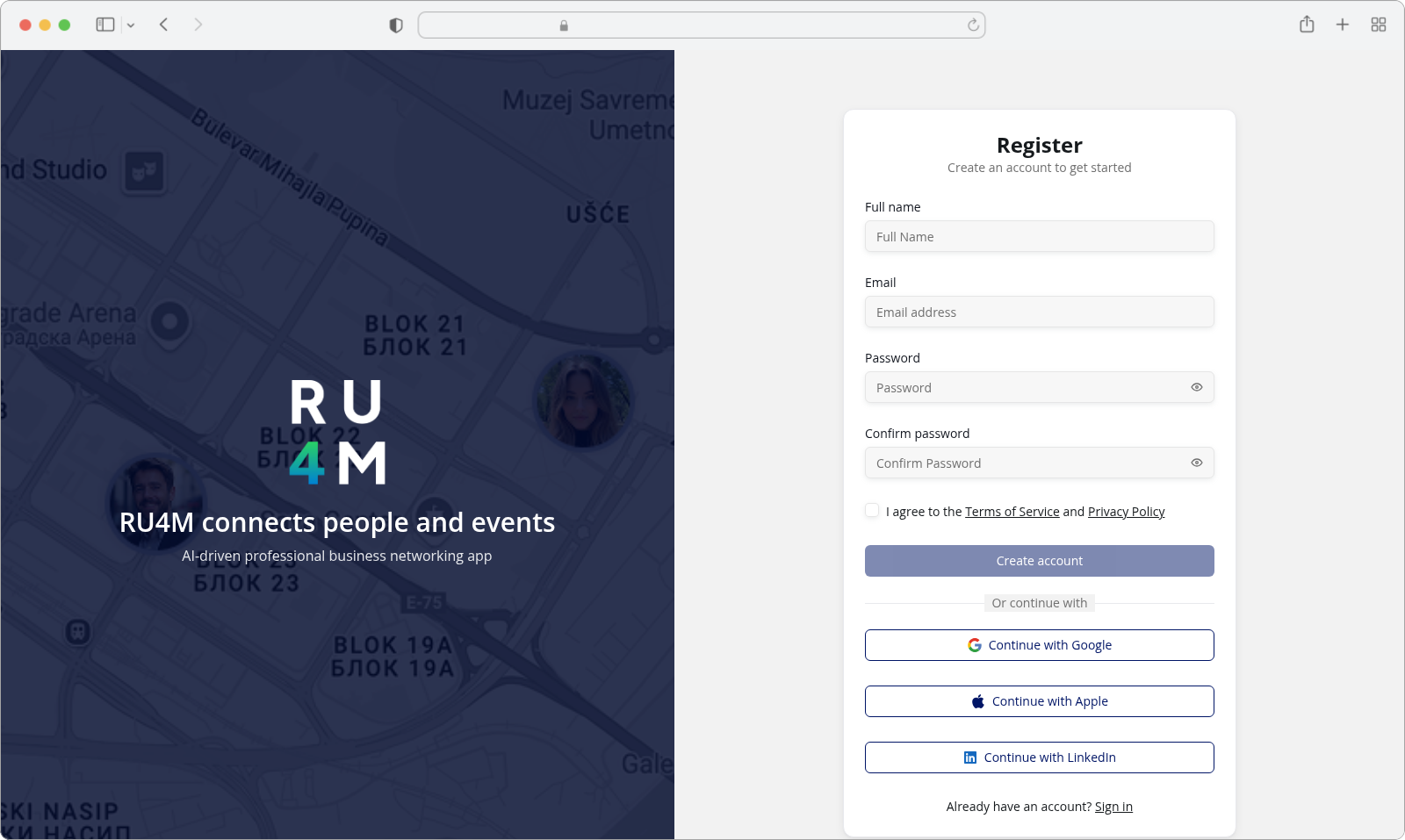
A filled form, ready to submit:
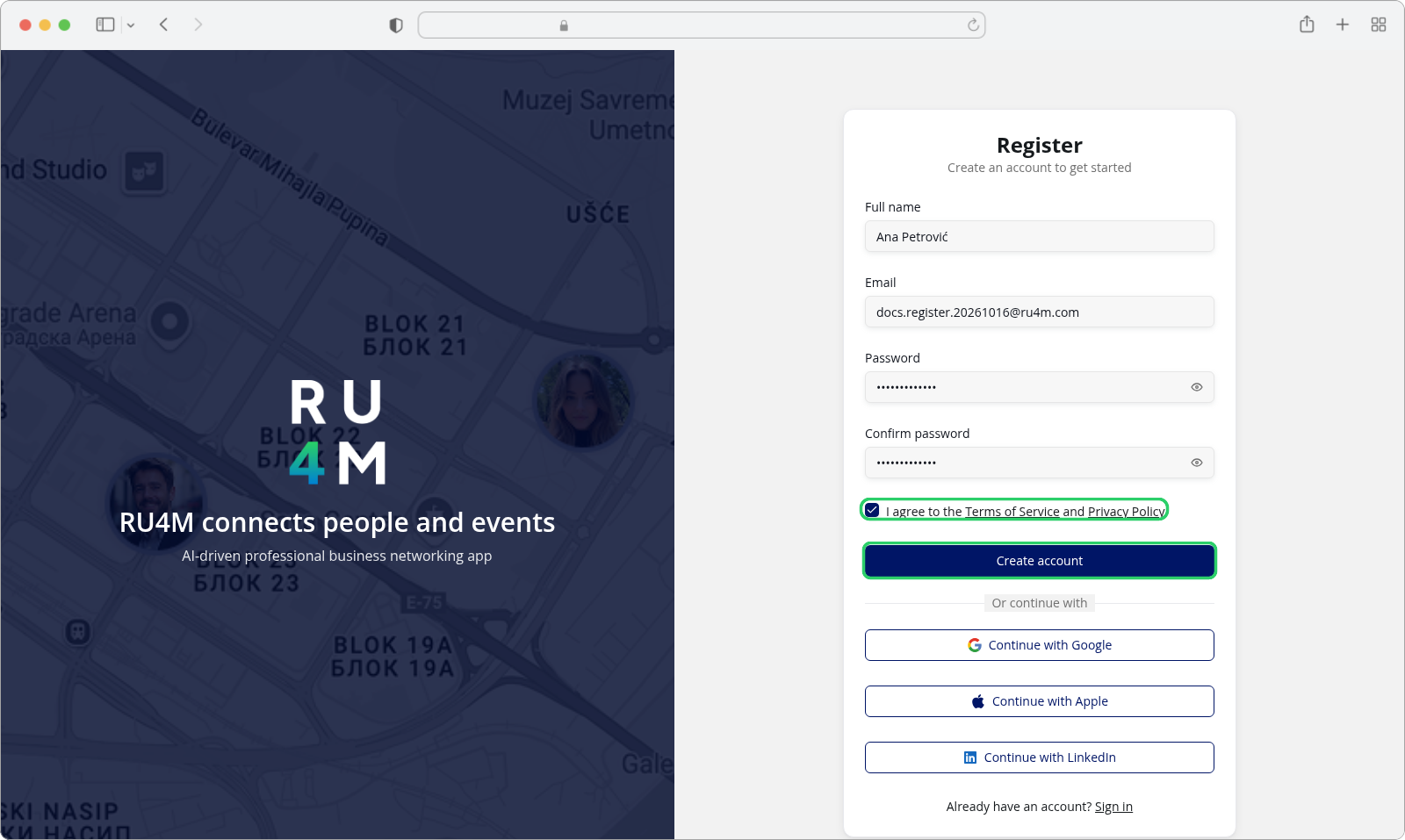
What happens next
A successful registration takes you straight to Check your email, which carries the verification link for the address you just entered — see Confirm your email address.
Two results that read alike
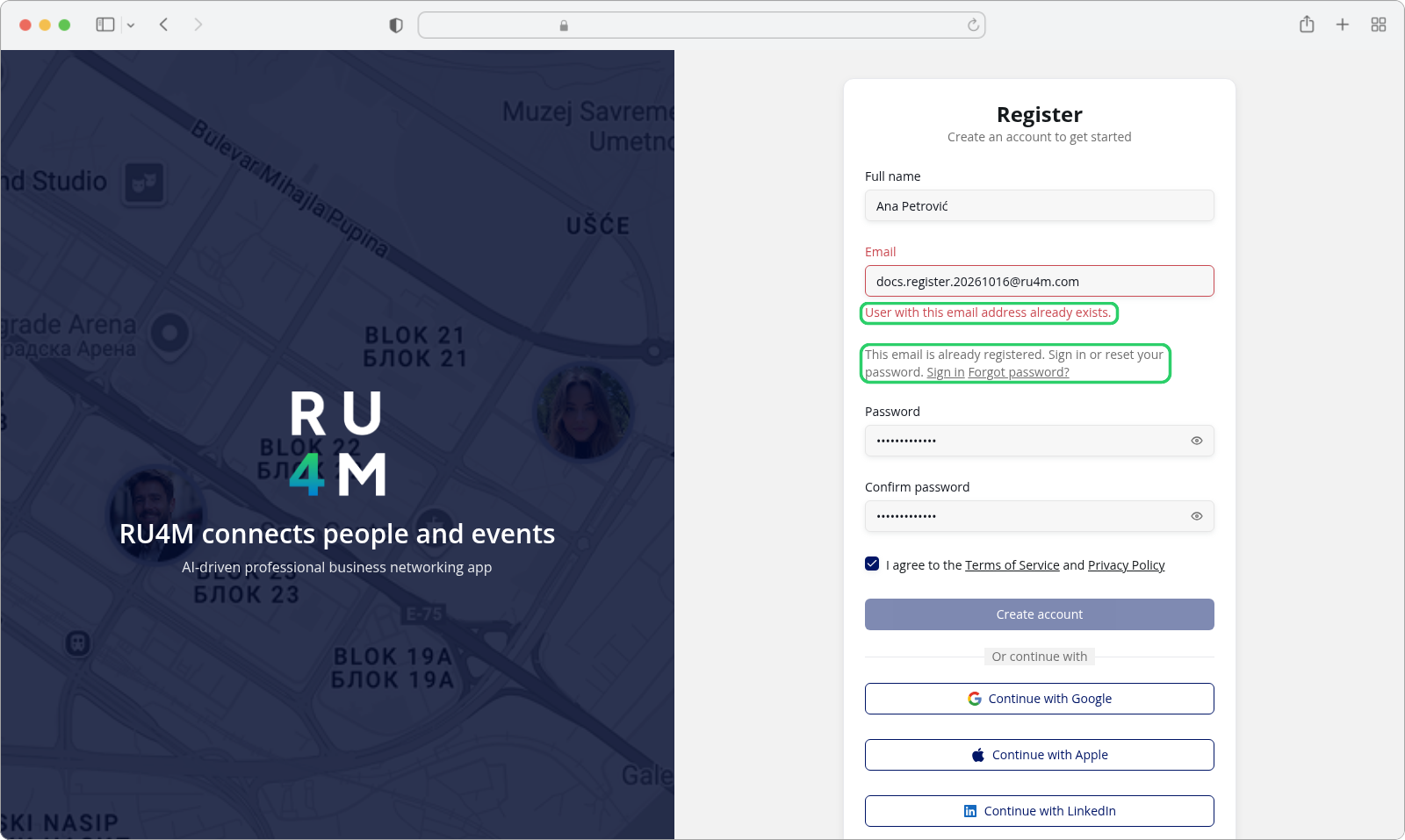
This email is already registered. Sign in or reset your password. An account already exists for that address. Nothing was created and nothing was changed by this attempt — sign in with your existing password, or reset it if you have forgotten it. The field itself carries the reason, User with this email address already exists.
Your account was created, but we could not sign you in. Please sign in to continue. The account exists — only the automatic sign-in did not go through. You are sent to the sign-in page; sign in with the password you just chose and the account is ready to use.
If something goes wrong
| Message | What it means | What to do |
|---|---|---|
| Name may contain only letters, numbers, and spaces | The name contains a character the field does not accept — a dot, an apostrophe, a dash or a symbol. | Remove it and enter the name with letters, numbers and spaces only. |
| First and last name are required | Only one word was entered. | Enter at least two words. |
| The Email field is marked invalid | The address is not a complete address, or is longer than 100 characters. | Check for a missing @ or domain and retype it. |
| Password must be at least 8 characters long. | The password is shorter than the minimum. | Lengthen it to between 8 and 64 characters. |
| Maximum 64 characters allowed | A password field is longer than 64 characters. | Shorten it. |
| Passwords do not match | The two password entries differ. | Retype them so both read the same. |
| You must accept the terms of service | The agreement box is unticked. | Tick it — the button cannot be used until you do. |
| Some fields need attention. | The server rejected the submission on one of the fields. | Correct the marked field and submit again. |
| Failed to create account. | The request did not complete — and the message does not prove that nothing was created, because the server can commit the account and then fail on a later step. | Submit once more. If the address then comes back as already registered, the account was created after all: sign in, or reset the password. |
Two messages stay in English
Name may contain only letters, numbers, and spaces and First and last name are required come from the shared validation rules rather than the interface translations, so they appear in English in every language of the form.
The password rule here is the shorter one
Registration asks only for 8 to 64 characters. The stricter rule — upper and lower case, a digit, a special character and no spaces — belongs to password recovery, not to this form.